Configure Windows device VPN
Add to device
- Select the Devices tab in top navigation.
- Select one or more Windows device names from the list.
- In the right panel, choose VPN.
- To add a new VPN configuration:
- Click Add New.
- Enter required information and make selections.
- Click Save.
- To copy a VPN configuration from Library:
- Click Copy from Library.
- Select one or more VPN configurations.
- Click Copy to Device.
Remove VPN configuration from device
- Select the Devices tab in top navigation.
- Select one or more device names from the list.
- In the right panel, choose VPN.
- Select one or more VPN configurations from the list.
- Click Remove, then Confirm Remove.
Add VPN configuration to device using policies
- Select the Policies tab in top navigation.
- Complete one of the following steps:
- To create a policy, click Add New.
- To edit an existing policy, click the policy to open the policy details.
- In the Applies To section, select one or more labels associated with target devices. For more details about labels, see Using labels to group similar items.
- In the right pane, in the Resources tab, click Add Resources to open the drop-down list, and then click VPN to open a dialog.
- Slide the Link toggle to link/unlink the VPN configuration.
- To link the VPN configuration to policy, slide the Link toggle to right. The color of the toggle changes to green indicating the resource is linked.
- To unlink a previously linked VPN configuration, slide the Link toggle to left. The color of the toggle changes to red indicating the resource is unlinked.
- (Optional) In the Options column, click the icon to open Resource Options dialog. Select one of the following Compliance Type:
- Include - Select this option to include the resource when determining the compliance status.

NOTE: By default, all the Resources in a policy are included in compliance checks.
- Exclude - Select this option to exclude the Resource when determining the compliance status.
- Include - Select this option to include the resource when determining the compliance status.
- Click Add Resources to associate the VPN configuration to the policy. You can view the resource in the Resources pane.
- Click Push Resource to deploy the added VPN configuration to the target devices or users.
For more information about policies, see Using policies to manage device configurations.
Add to Library
- Select the Libraries tab in top navigation.
- Click the VPN icon.
- Click + Add New, then select Windows from the dropdown.
- When selecting an EAP authentication type, you will be required to paste in the EAP XML from a Windows client.
- Instructions: Create EAP configuration XML
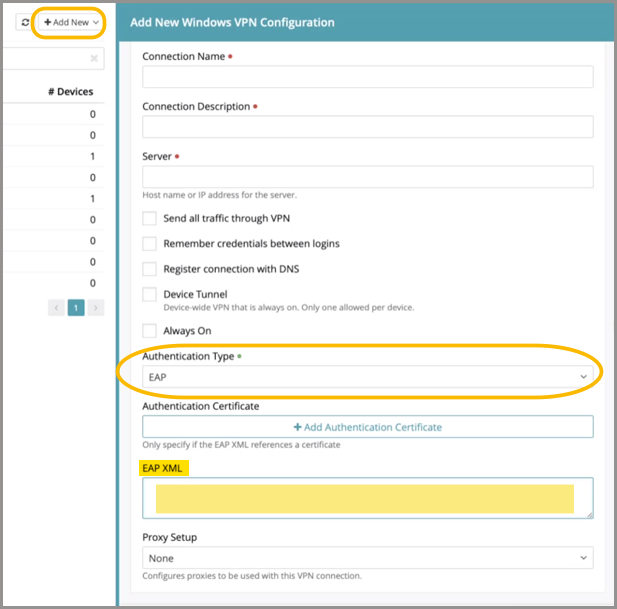
- Select your connection type and enter required information, then click Save.
Edit in Library
- Select the Libraries tab in top navigation.
- Click the VPN icon.
- Select a VPN configuration from the list.
- In the right panel, click Edit.
- Update fields and selections, then click Save.